
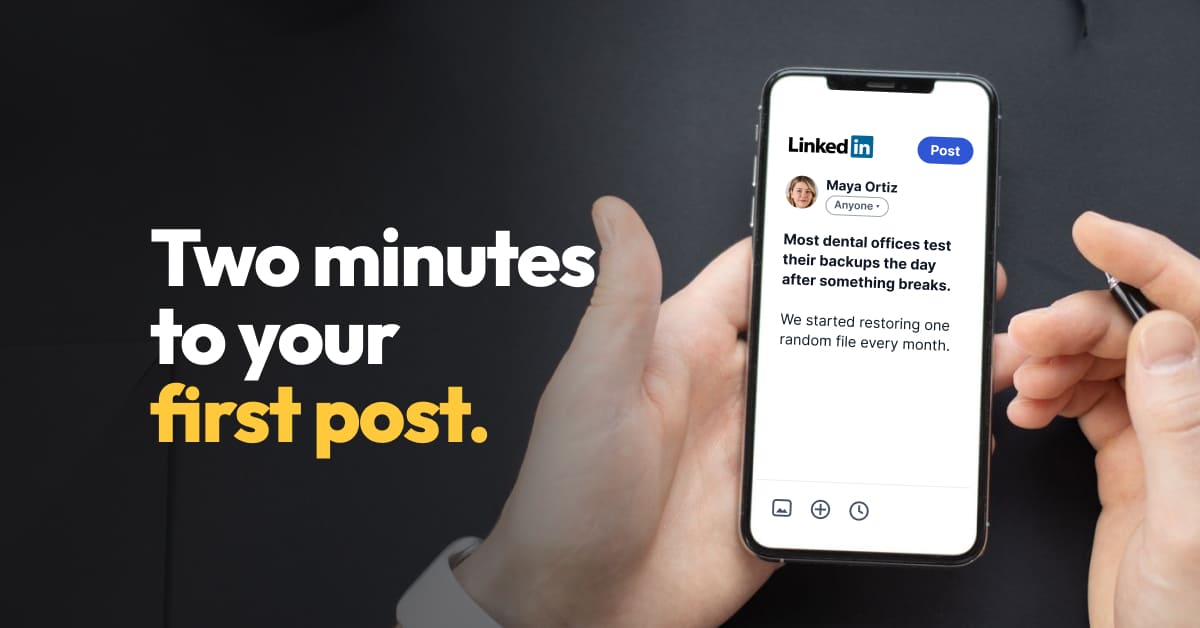
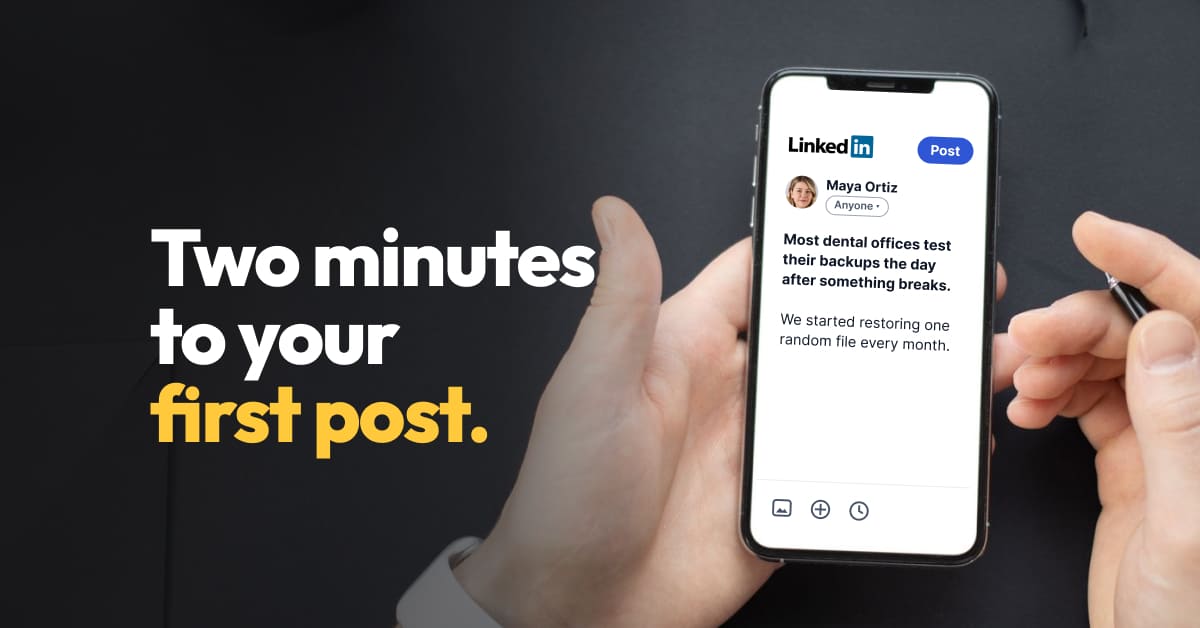
To post on LinkedIn, click Start a post at the top of your homepage on desktop, or tap Post in the navigation bar on mobile, write up to 3,000 characters, set who can see and comment, and click Post. To post as a company, do the same from your Page’s admin view, or choose the Page as the author in the composer if you are an admin (LinkedIn Help).
The clicks take two minutes. The harder part is knowing which settings to touch, which post type fits your goal, and how to keep posting every week without it eating your calendar. This guide covers all three for founders who sell on LinkedIn.
How do you post on LinkedIn from a desktop?
These steps follow LinkedIn’s Post and share updates page, last updated two months before this article was written.
If you are not ready, save the post as a draft. LinkedIn says you can continue editing a draft from another device, so you can start on your laptop and finish on your phone.
How do you post on LinkedIn from your phone?
The mobile app uses the same logic with different labels, per the same LinkedIn Help page.
Two mobile limits to know. Writing an article is not available in the LinkedIn mobile app, according to LinkedIn’s article guide, so long-form work needs a desktop browser. And if you manage a Page, the mobile composer lets you tap your name and choose whether to post as your profile or the Page.
How do you post as a company Page?
You need to be a super admin or content admin of the Page. LinkedIn’s Post as your LinkedIn Page guide gives this route on desktop:
On mobile, tap Dashboard, choose Page posts, and tap Post. LinkedIn notes the audience setting defaults to Anyone and cannot be changed on mobile for Page posts.
One planning detail from LinkedIn’s Pages FAQ: Page posts display in the Page Posts feed for up to one year or until you reach a maximum of 500 Page posts, whichever comes first. Treat the Page as a place for reference content. For many small firms the founder’s own profile does more of the reaching, so post from both.
How do desktop, mobile and Page posting compare?
These cards are built only from the LinkedIn Help pages above, so you can see the differences in one place.
Which post type should you pick?
LinkedIn’s getting started page lists the main options: a text post with Start a post, a video, one or more photos, a long-form article, and extras in the More menu such as a poll or a document. Grammarly’s guide to LinkedIn posts groups sharing into posts, articles, reposts and newsletters, and describes the standard post as the short-form option.
For founder-led sales, match the type to the job:
What should your first post say?
Most "how to post" guides stop at the buttons. Here is a five-line structure you can paste into the composer and fill in. It works for a SaaS founder, an MSP owner or a partner at a professional firm.
Here is a worked example for an MSP owner who sells to dental practices. It is an illustration, not a real client story:
Most dental offices test their backups the day after something breaks.
We started restoring one random file from every client’s backup on the first Monday of each month. Two clients had backups that had silently stopped weeks earlier. Both were fixed before anyone noticed.
If you manage IT for a practice, pick one file this week and try to restore it.
Do you test restores, or do you trust the green checkmark?
That fits well under the 3,000 character cap. The first line states a claim, the middle shows evidence, and the last line gives a peer something easy to answer. Check the layout with our guide to LinkedIn post formatting and preview line breaks in the free LinkedIn text formatter before you publish.
Which settings should you check before you click Post?
Why might a post not go out?
LinkedIn says, on the same Post and share updates page:
The practical rule: post by hand or through a tool that publishes through LinkedIn’s official connection, keep a human reading every post, and do not bulk create posts.
How do you keep posting after the first one?
One post proves nothing. Consistency does the work, and it is the part founders drop first. Pick a weekly slot, batch two or three posts in one sitting, and schedule them with the clock icon or a scheduler. Our guide on how to schedule posts on LinkedIn walks through the options.
If writing is the bottleneck, SocialPost.ai drafts on-brand LinkedIn posts for you every week, lets you review and edit them, and its scheduler publishes on the schedule you set. Nothing goes live until you approve it. You can start free at SocialPost.ai.
Frequently asked questions
How do you post on LinkedIn for the first time?
Click Start a post on your homepage (or tap Post on mobile), write your text, choose who can see and comment, and click Post. Keep the first post to one idea. You can save it as a draft first and finish it from another device.
How many characters can a LinkedIn post have?
3,000 characters, according to LinkedIn Help. If your text is longer, write an article on desktop instead.
How do I post on a company page on LinkedIn?
You must be a super admin or content admin. Open the Page’s admin view, click Page posts, click Start a post, add your content and click Post. On mobile, use Dashboard, then Page posts, then Post.
Can I schedule a LinkedIn post?
Yes. Use the clock icon in the composer on desktop or mobile to pick a date and time. LinkedIn says you can manage scheduled posts from the composer.
Can I write a LinkedIn article from my phone?
No. LinkedIn states the article feature is not available in the mobile app. Use a desktop browser.
Should I post from my profile or my company Page?
Do both, but lead with your profile. A founder’s profile is where buyers form trust, and the Page is where they check that the company is real. Posting from both costs little once you batch your writing.
Why can’t I post on LinkedIn?
LinkedIn may limit posting when it sees excessive activity or automation, and limits vary with verification and behavior. Verify your profile or Page, wait, and try again.
How do I post a video on LinkedIn?
Start a post, click the media icon (or tap Media on mobile), choose your video file, add your text and post. On Page posts you can add your own captions or turn on automatic captions, per LinkedIn Help.
What is the short version?
Start a post, set audience and comment control, write within 3,000 characters, schedule or publish. Use the Page admin view for company posts, a desktop browser for articles, and the five-line template when you do not know what to write. Then make it a weekly habit. When you want the habit to run without opening the composer every time, start free on SocialPost.ai.