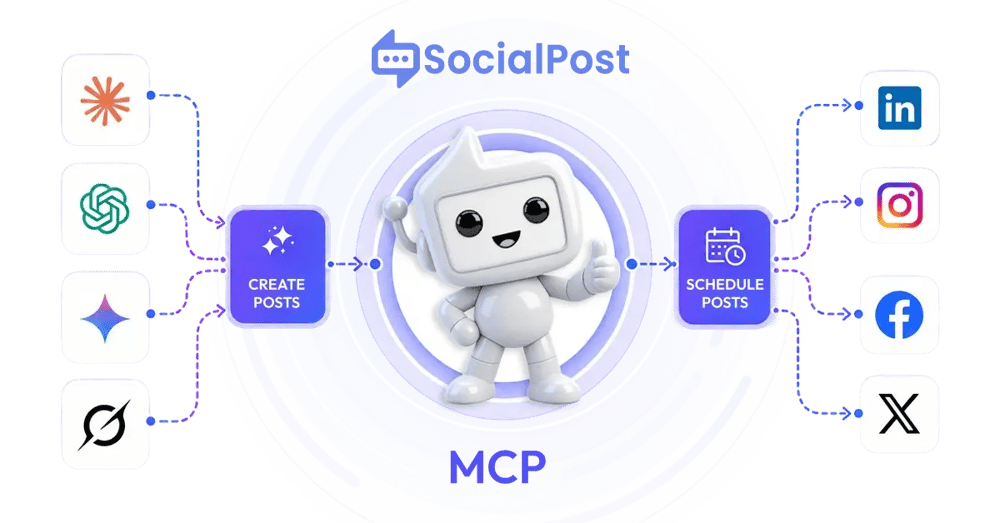
Post from your AI. Nothing goes out without your say-so.
Connect SocialPost.ai to Claude, Cursor, or any AI assistant, then draft, schedule, and publish just by asking.
- You approve every post in the chat before it publishes
- Writes in your brand voice across your connected accounts
- Cancel any scheduled post before it goes live
Booking used to mean five back-and-forth emails. Now clients pick a slot in one tap, and it lands straight in your calendar. Live today for every plan.
Works inside the AI apps you already use

What it does
Run your whole posting workflow by asking
Connect once and these tools show up in your AI assistant. Ask in plain language, review, and approve.
Write in your brand voice
Generate drafts and full posts that match how you already sound, ready to tweak in the chat.
Schedule and manage your calendar
Queue posts, move them around, and see what is going out and when, all from the conversation.
Preview exactly what will go out
See the real post, platform, and time before anything publishes. No surprises.
See your workspace and accounts
Your AI reads your plan and connected accounts so it drafts for the right platforms.
Cancel before it goes live
Change your mind on a scheduled post and pull it back before it publishes.
Publish on your say-so
When the draft is right, one approval sends it live to your connected accounts.
You stay in control
Your AI drafts. You decide.
- ✓ Nothing publishes without your approval Every post waits for your explicit go-ahead in the chat before it goes anywhere.
- ✓ A 10-minute safety window Scheduled posts are set at least 10 minutes out, so there is always time to cancel.
- ✓ Disconnect in one step Remove the connector in your AI app and access ends at once. No lingering permissions.
Post to LinkedIn?
Your AI has prepared a post and is waiting. It will not publish until you approve it here.
Set it up
Connect in about two minutes
Paste one URL into your AI app, sign in, and approve. That is the whole thing.
- 1 Open your AI app's connector settings In Claude.ai, go to Settings and choose Connectors.
- 2 Add a custom connector Click Add custom connector. It may sit under an "Add more" button.
- 3 Paste your connector URL Paste the URL and name it "SocialPost.ai".
- 4 Sign in and approve The SocialPost.ai window opens. Sign in, then click Authorize.
Your connector URL
https://api.socialpostai.com/api/mcp/
Tied to your account, so keep it private. Custom connectors need a paid plan on your AI app.
FAQ
If you get stuck
Can the AI post something without me seeing it?
No. Nothing publishes without your explicit approval in the chat, and scheduled posts are set at least 10 minutes out so you can always cancel first.
I don't see an option to add a connector.
Custom connectors need a paid plan on your AI app, for example Claude Pro or Team.
Sign-in keeps looping.
Allow pop-ups for this site, make sure you are signing into the same SocialPost.ai account, and try once more.
Where's my 2-step code?
The code is emailed to your SocialPost.ai account address. Check spam if it is slow to arrive.
How do I disconnect?
Remove the connector in your AI app. Access ends at once.
Let your AI handle the posting
Connect SocialPost.ai to your assistant and publish by asking. You approve everything.